Showing posts with label Planting. Show all posts

Sunday, October 1, 2017

PLANTING SEEDS IN DENMARK

I'm in Denmark, attending the BiLT conference.  (Revit, BIM, other related stuff)  I am leading one session, called "Planting Seeds".  It's about the Planting category in Revit and the seeds part implies that I am presenting exploratory work that will continue to grow and hopefully stimulate others to build on my ideas.  In the course of my preparations, I opened up some of my early Revit work.  I showed some of the blog-related stuff a couple of weeks ago.  This one is focused on my day job at GAJ Architects, Dubai.


The first version of Revit I ever had was 7.0 so I spend quite some time using the Accurender version of raytracing before Mental Ray was introduced with Revit 2009.  (We also got the swept blend, colour fills in Sections, sloping pads, shape editing floors ... heady days) Accurender had very interesting Planting objects.  They looked a bit wierd in shaded views, but they rendered as genuine 3d objects. If you look carfully at the palm trees in the image above you will see this.  We are looking up into the canopy of the nearby ones, but at a distance you get a side view.


They also had some interesting controls, like "Trim Height" which allowed you to have a tall canopy on a short trunk, or vice-versa.  My next image shows an early example of mixing rendered and shaded images using layers in Photoshop, blending and filtering the image to simulate more of a hand-drawn look.  This can be especially effective to convey the softness of landscape elements.  But of course the "partner in charge" wasn't always convinced that Revit could "do" client-friendly images, so at times we just printed out Revit views and had our pencil and paper guys trace over them. Don't knock it.  Apart from producing very effective images, some useful design ideas can emerge along the way.


For a while I experimented with "Impression" which was free software for processing CAD files.  You could take a hidden line camera view, export it to CAD and use impression to turn the lines into a pencil effect.  This was hard work compared to say Sketchup which gave you a similar effect live, at the click of a button.  But I gave it a go and lived in hope.


The introduction of Mental Ray was quite exciting.  This is one of my very early attempts to exploit its potential.  The way it represents building elements if much more convincing than Accurender.  The shadows are more subtle and realistic with light bouncing around from surface to surface.  But the trees have moved in the reverse direction.  They look flatter, less volumetric, which is probably why I downplayed them so much in these views.


Opening one of the files and viewing with Enscape3d, the planting families that I placed back in 2008 immediately convert into fully volumetric objects.  Some of the custom materials have got screwed up, but that's nothing to do with Enscape, just the fact that my laptop doesn't have the right images on the paths set up under Options/Rendering.  Now this image isn't quite as impressive as some of the others I've been showing, but I'm pretty sure that if I spent half a day gathering together and tweaking the various linked files that were created for this project, I could create a couple of dozen images that represent it far better than the ones we generated in 2008.


Villa Savoye is a project I built around the same time.  It was partly motivated by my own fascination with the history of architecture and building technology, but I also used it as the subject for several training sessions, most notably a brief attempt to teach basic Revit skills to the partners at GAJ.  The image here compares a "realistic" view to the same shot in Enscape (top)  This is informative.  The tree shapes are quite different, although they obviously represent the same species.  The effect in Enscape is much sparser. The trees don't fill out the background as they did in the original.  I think part of the problem may be that some of the families are just not getting picked up in Enscape.  Maybe I have some dodgy RPCs in there.


But generally speaking, the Enscape trees are impressive and fully 3d.  You can view them from above and they look great.  They cast realistic shadows even when the sun is coming from the side. (RPC trees are flat billboards, so shadows from the side are very thin.)  In a realistic view you don't actually get any shadows at all.  Again I am not trying to criticise RPC families.  They are incredibly useful, lightweight and versatile, plus you can do a lot with the free starter pack that comes with a Revit installation.


The final image is not mine, and it's not Revit.  It was produced by the same team at GAJ that did the hand drawn image earlier on, this time using Sketchup and Photoshop.  I was helping a guy working on the same project, but using Revit.  It was early concept design stage, and we really struggled to compete with the Sketchup team.  We were quite proud of the images we came up with, but the partners thought they were awful.  I'm sure many of you have had similar experiences.  Plugins like Enscape3d definitely go a long way towards closing that gap, especially if you have the versatility and imagination to do a bit of mix and match with blended and processed images. 

I will be sharing some of the families from my session at Aarhus in coming weeks, so stay tuned.

Sunday, August 13, 2017

ANOTHER WEEKEND

I'm going to begin this post the way I finished the last one.  We have set up a new website for the continuation of the work begun during the Project Soane competition.  Please take a look, and seriously consider the validity of using BIM tools and processes outside the normal "commercial" or "day-job" context.

www.projectsoane.wordpress.com

Another weekend has flown by and I didn't achieve half the things I wanted to, but I did at least begin to prepare for the BiLT Europe conference in Aarhus at the beginning of October. I'm doing a presentation on creative use of the "Planting" category in Revit.  This will cover both actual trees or shrubs, and other types of object that don't really belong to that category but can make use of the peculiar capabilities of double-nested planting objects.  For example, these are railings.


You might notice that the second one from the top is a double-sized version of the ones immediately above and below it.  This is achieved by nesting a planting category family within the baluster component.  These are not intended to be actual railings either.  They are inspired by Project Soane and represent the carved decoration on masonry friezes.  Railings are very useful for quickly creating these kinds of repeating motifs of course they go around curved corners quite nicely.  Here's a couple of images of the kind of thing we are talking about.


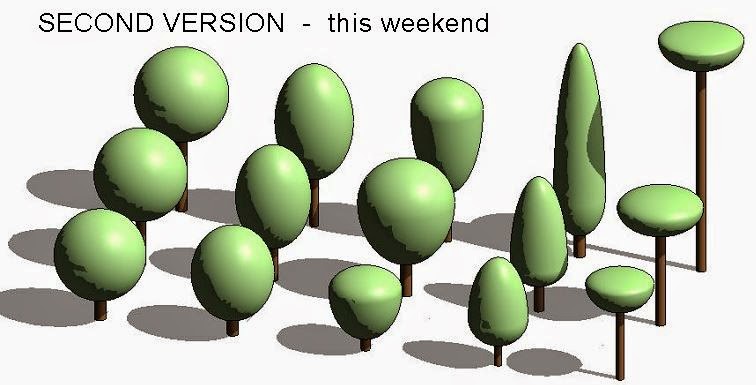
I've also been reviewing my "lollipop" tree family, cleaning it up and making the parameters a bit more user-friendly.  It's intended for use in large-scale contexts: Urban Design studies and the like where you want to keep things fairly abstract but just represent the idea of a row of trees or a small public park.  These are all types within a single family, so it's super lightweight.  I also added a choice of plan symbols that you can choose from, and set these up to scale correctly to give a realistic impression of the canopy diameter.


That's one of the well-known issues with the out-of-the-box planting families.  The plan symbols don't adjust properly so a tall-thin tree will have a symbol that's too large, and a short fat one with look too small in plan.  I came up with a solution for that a few years ago and shared the family, which has been one of my most popular downloads.  But at the time I only did the deciduous RPC tree family.  What I've been preparing for October is to cover all of the free RPC content, and to show people who attend my session how to easily adapt the family to incorporate any RPC content you might have acquired from Archvision.


I spent a bit of time revisiting my collection of plan symbols.  This goes back more than 20 years, to a library of CAD blocks I built up when I was in Zimbabwe.  That brought back some memories.  Days when my children were still at school.  I guess I started using CAD before the youngest even started primary school.  And now I have a grandson about to start school in England.  For those of you out there who also have kids: cherish those days when they are getting on your nerves, it will all seem magical looking back 20 years from now.


One tip I plan to share involves using family files as a working area to store various bits of content you intend to use when making a whole bunch of families.  In this case it's CAD content waiting to be traced over or exploded or whatever then pasted into new families as symbolic lines in the planting category. 

And finally I have a few tree families that I attempted over the years based on different approaches.  For example There are some that look a bit more like the bunch of model lines we used to have show up in shaded views back in the days when Revit used Acurender.  There might be times when you want something more like this to show up in a shaded view perhaps.  The abstract/stylised thing again.


And that's it for another short, long weekend.  Day job beckons in the morning.  Hope to see some of you in Aarhus a few weeks from now.


Tuesday, August 26, 2014

THE UNIVERSAL LOLLIPOP TREE

This is something that I developed for my Urban Design explorations talk at RTC Chicago.  The idea was to take the basic "blob on a stick" tree that is often used at an Urban scale, and make it more parametric.  Hence the universal lollipop tree.


It wasn't too hard to set up.  A revolve made from quarter ellipses.  You can vary the shape by moving the "waist" up and down, also by changing the proportion of width to height.


The family I used in my presentation looked fine in the images, but in reality was less than perfect.  The way I had hooked up the parameters led to somewhat counter-intuitive behaviour.  For example, increasing the trunk height factor would actually decrease the proportion of trunk to canopy.


So this weekend I decided to fix that family, make it more user friendly, and offer it up to the general public.  Version 2 was much better.


There are subtle changes to the formulae that make them work more as you would expect from the given names.  I set up 15 types, with names that I thought would be easier to follow.


That's all good, but the names really refer to shapes.  At one point I was actually adding the height to the type name, but this just seemed to make things more complicated.


I decided to go for a version 3 where height would become an instance parameter.  You probably know that the different family templates have slightly different behaviours baked into them.  The Planting Template has a "Height" parameter that you can't delete and you can't change to "Instance"  So I had to resort to creating a new parameter named "_Height"


Because all the "driven" values are ultimately dependent on "_Height" these also have to be instance parameters.  Revit won't let you have two instances of the same type with different Type Parameters (which is what could happen if you allow a Type Parameter to be dependent on an Instance Parameter)

Because of the way the parameters are all interconnected, I had to delete all the formulae (copy-paste them into a text document) change the parameters to instance, then copy all the formulae back in.


The end result is a tree whose shape is determined by four type parameters, and whose height is controlled by a single instance parameter.  There are a bunch of greyed out "formula driven" parameters that appear in the "other" section of instance parameters.  These record the actual dimensions of any given family instance.


So that what I decided to do with my lollipop.  You can probably get by with the 15 types built into the family, but it's quite easy to tweak them, if so desired.

Hope you like it.  Download from here.

LOLLIPOP TREE DOWNLOAD

Wednesday, November 6, 2013

TREE FAMILY DOWNLOAD

This is the long promised follow up and download post.

I have taken a standard ootb Revit planting family (RPC deciduous) and modified it to achieve several ends.


  • plan symbol to match the width of the 3d object
  • an instance parameter to enable random variation of rotation angle
  • an instance parameter to enable (small) random variations of height


The symbol family, aka "deciduous base", contains a vertical model line, (invisible) controlled by a "height" parameter; plus a bunch of symbolic lines to represent the tree in plan views.


Normally this is contained within the nested planting family.  (i.e. the nested family has 2 things inside it, the deciduous base, and a strange object called "render appearance" which is not a family.)


I have separated these 2 components into separate planting families, each nested into the host planting family.  There is only one "render appearance" family, which has the capacity to represent many trees.  I have opted for 5 "base symbols" which can be selected by means of a type parameter.


Rotation is achieved very simply by a labelled angular dimension.  This only affects the "render appearance"  It would be possible to also rotate the plan symbol by random amounts, but it didn't seem to me that this was necessary.  Plans are by the nature rather abstract and formalised.  It is in the 3d views that we really want to inject some random variation to better simulate natural plants.


The size of the "base symbol" is controlled by a width factor.  This varies the height of the invisible line (the "stick") by way of a formula.  What matters is the relationship between symbol size and stick size. So a fat tree needs a shorter stick. Hence the formula divides Height by Width Factor to derive Stick Height.  By a process of trial and error, you can find an appropriate Width Factor for each species of tree contained within the render appearance.  Once set this is good for all time.


The way the height scaling works is a bit tricky to explain.  All planting families have a type parameter called "Height" baked into them.  In the nested family this controls the height of the stick.  For each species of tree, the stick height is adjusted to match the height of the Render Appearance.  Planting families have a special behaviour.  Double nested families will automatically scale so that the tallest piece of geometry in the nested family scales to match the Height parameter in the Host family.  You don't have to link any parameters, it just works that way.


BUT the Render Appearance is not a normal family, it doesn't count as geometry.  So if the Render Appearance is 10% taller than the stick, it will eventually be 10% taller than the stated height in the Host family when this is placed in a project.


Even if the stick is removed the Render Appearance will act "as if" there was a stick of the stated height.  Don't worry it also confuses me.  In the end I solved this by trial and error with only a hazy idea of what was going on behind the scenes.


Download the family from here

TREE FAMILY (many types)

Or a project file with a fuller explanation from here

TREES COLLECTION 


Wednesday, October 23, 2013

ANOTHER WORLD

I'm going to tackle a couple of Escher compositions.  Take a break from the animals for a while.  The first one is called "Another World" ... in a way it's all about XYZ coordinates, which way is up, an interesting challenge.

We start with an archway family.  Chance to show off my Tuscan column. Haven't finished the post that this came from yet, it's an improvement on my previous efforts.  Probably not as good as the ones in Paul Aubin's new book, but it will do :-)  It has to be face-based so it can turn upside down.


Face-based means void extrusions rather than cut openings.  Just make sure they're deep enough.  The original has some half-size arches, otherwise you run out of sides.  I was too lazy for that, but maybe it's an opportunity to give it my own twist also.


I've added an arch that we're looking through instead. Where the archways meet at the corners I have 2 columns coexisting in space.  I could have used a visibility parameter to hide one, but didn't seem to be necessary.


I'm using a spiral from one of my previous posts in lieu of the hanging hunting horn.  Something to give a sense of gravity.  In my case it's some kind of pendant/wind chime thing.  This one had to be adaptive cos that's the way the spiral was made.


  My birds weren't ready, so Im going with another Escheresque object, a silvered globe.  Nice reflections.

The stairs are generic model families.  Check "work plane based" & uncheck always vertical.


To emphasise the other-worldliness of the scene, Escher created a lunar landscape with galaxies and whatnot against a black sky.  I'm going with a hubble image for the sky and I made a nice generic crater family that can be scattered around in different sizes.


Just look at all those equality constraints beavering away, keeping it proportional  Face based again of course.  Allows me to curve the surface of the planet away towards the horizon.


I won't pretend it's a finished work yet, but I certainly had fun, so let's try another.  This one's all about scaling, the Still Life Street.


Some very interesting challenges here.  Scaleability in different forms.  Work plane issues with the inclined books.  How to make a family that easily rotates into different positions as a book does when casually placed in groups on a table.  Materials.  The book scales differently in different directions.  OK but how to map the materials also.  And the scaling of materials eg wood grain to make the lilliput world convincing.


That's technical stuff.  But what about the artistic issues ?

And WTF does this have to do with pumpkins or halloween or Zach's competition ?

There are definitely themes in common with my previous pumpkin work.  Imaginary worlds, surreal juxtapositions, dualities and ambiguities.  The duality thing is rather central to the whole spirit of the competition.  It's a pumpkin, no it's a face, no maybe it's something architectural.


As for halloween, well it's not exactly horror, but it's a little bit eerie, disorienting.  Illusions, bringing inanimate objects to life (that's witchcraft right ?)  It's a bit Harry Potter as well, walking through walls to get to platform 9 3/4 or whatever.


Am I just copying Escher or am I learning more about his intentions ?  Is it a research exercise ?  Is it becoming an independent work of art in a small way ?  He plays with textures, and this interplays with his craft, the engraving technique is always a central theme in his work.  Opportunities to express and explore the nature of engraving, which is very different from a pencil sketch or ink and wash. 1937 so it's in the build up to the second world war.  His world was about to change dramatically for the worse.


The multiple perspectives belong to the fifties.  A world turned inside out  Faceless people wandering around.  The skull in the eye from 1946.  Lizard dragons crawling off the paper and back again from 43.  Similar theme with mirror and griffins from 46  Looking at himself in a glass ball 1935  Another world is from 47.  is that the first of his multiple viewpoints pieces


Is there any pattern ?  What about the techniques ?  Does he drift into mezzotint and lithography later on, dally for some years and then return to his roots ?  Or is it more nuanced, choosing the technique for the project ?  Some of the thoughts that drift through my mind as I labour away.

Thursday, October 10, 2013

TREES FOR INSTANCE

This is going to be a marathon.  I spent the whole long weekend climbing trees ... sort of.
I started this a while ago.  It was inspired by a post on Revit Swat.  I had the idea of using a rectangular rig for the leaf, so it would maintain a constant shape instead of getting fatter as it got shorter.


It's an adaptive rig so I can use it in a repeater (the branch)  I use a reporting parameter to extract the length of each leaf instance and use it to drive the width.  (W=L*F where F is a width factor)   Add a few rungs, hang a couple of splines and use them to make a surface.  Hey presto: a scalable leaf.


The branch is copied straight from Revit Swat, as far as I could make out.  Again it's a 2 point adaptive.  Connect the 2 points with a ref line & host a point at the mid-point.  Show all ref planes.  Place a point on the horizontal plane and give it an offset.  Show all ref planes of this new point.  Set the work plane on axis, place 2 more points, offset these to either side.  Use spline-through-points to
create 3 curved ref lines. 

Select these & Divide Path.  Place a leaf on one side.  Repeat.  Do the same for the other side.  We have a branch.  A couple of points here.  You will get an error message after the repeat command because it's impossible to make a leaf at the ends of the line (it would be zero length).  To avoid this you need to set beginning & end indents for each of the repeaters.  Once this is done it will be possible to control the number of leaves with a parameter. 


So the next stage is to place branches in a tree.  All these families are "Generic Model Adaptive" with the category changed to "Planting" (and "Shared" unchecked)  I used a loft based on 2 circles for the tree trunk.  Then more circles to create repeaters for the branches.  The end points of the branches were set to "vertical on placement" basically so that they don't fall over on their sides.


One of the advantages of making trees from Revit native geometry (as opposed to 3d CAD trees embedded in Revit families) is the ability to apply material parameters.  I decided to have subcategories for global control of materials, & parameters to act as overrides where needed. 


I have instance parameters for the base radius & height of the trunk.  These exist in the basic tree and are linked through to matching perimeters in the final family.  I ended up with a family where the overall height is set by the inbuilt type parameter, but the trunk shape can be varied using instance parameters.  


You may have noticed that the leaf has changed.  I was struggling with displaced geometry at this point and ditched the rectangular rig.  By now I have a family that has ballooned to 6mb.  I was curious what would happen if I exported this to dumb CAD geometry and then embedded this in a planting family.  This did indeed reduce the file size, but at the price of making materials harder to control & losing the variable proportions. 


Have you ever noticed that file sizes in Revit fluctuate for no apparent reason ?  Anyway it turns out that my Revit trees settled down to around 1Mb later on.  So I dumped the CAD idea.  Instead I went for simpler branches in 3 rows.  This eliminated one level of nesting.  Just make surfaces directly from the 3 curves in the branch family.  I also added one more circle to the trunk to give it a subtle curve. 


I was pretty chuffed with this family.  Sadly attempts to control the slenderness of the branch/leaf created unpredictable geometry ... groups of branches flying into the air etc.  Couldn't understand that.  Experimented with a "ring of branches" family nested 3 times.  Also unpredictable.  Eventually I made the family again from scratch and achieved a more slender version.  In this final image most of the trees are the second version.  The trees in the background to the left are the first version.  You can also see one or two aborted experiments way back.


Second morning and I went back to the original leaf idea and rebuilt it from scratch.  For some reason it decided to behave itself this time.  Gave me a family that looks a bit like a cycad.  Used to have those in my garden in Zimbabwe.  Fascinating plants. 


I was about to nest this to enable scaling when I realised that I had all the control I needed via the adaptive family parameters. 


All good so I decided to move on.  What about a deciduous tree ?  Maybe I could use a divided surface and curtain panels to scatter triangular shaped leaves around a canopy.   Just for fun I made the canopy revolve from an old fashioned spline (not the spline through points type)


For the divided surface I used bent triangles.  Made a very simple curtain panel family, loaded it and added a trunk.  It works,  probably could add all kinds of embellishments & variations, but for now I just added a "resolution" parameter to control the number of surface divisions (in both directions).  Eventually I rigged this up to adjust automatically to the built in "height" parameter that controls scaling of planting families.  That way different sizes of tree have more or less the same leaf size.


So let's get back to the idea of an instance parameter for random variation of sizes.  You have a tree family (A) nested inside the final planting family (B).  Link the Height parameter in A to an instance parameter (Ht) in B.  Create a number factor called F.  Use the built in Height parameter of family B, multiplied by F to control Ht ... ie the Height parameter of family A.  End result ... The inbuilt Height parameter works.  You can create families with typical heights.  BUT you also have a scale factor "F" which acts as a a multiplier factor. 


Place a few trees.  Fire up randomiser (free plug in from DP Stuff) fill in the various fields, set min & max values, press randomise.  The trees randomise around the typical height.  I did this with an OOTB RPC family.  Now I'm not crazy about RPCs, they look a bit flat ... mostly because they are flat ... they look OK from street level, but with a high camera angle, not so good.  For better trees, use 3D max, or maybe Lumion.  But there are lots of times when we want to have trees directly in Revit.  RPCs are one way to do this.  Random variation in heights will help to make them more convincing.  Ramdomising the rotation angles would also be good. 

Turns out this is also very easy to do.  Just rotate family A slightly & create an angular dimension between the family and the Centre L/R reference plane.  Label this with an instance parameter.  All done.


Now we come to a big drawback with the adaptive component based trees.  Can't embed symbolic lines or detail components.  No visibility controls for selectively hiding geometry in plan view.  This is a big drawback if you want to use the mass modelling tools for regular familes (planting, plumbing, furniture)  There are 2 good reasons for using symbolic representation in orthographic views.  First to reduce processor load & speed up regeneration times; second to give a cleaner graphic representation.  Both are especially important with complex curvilinear forms.  Exactly the kinds of shapes where the mass modelling tools would help. 

Enough of the moaning.  Let's get back to RPC families.  Here we do have symbolic representation.  It's embedded in a planting family called "xxx Base" where xxx could be "Deciduous" or "Tropical" etc.  It's one of 2 objects in the RPC family, the other is a "render appearance".  It's the object we see, and somehow it links to the render appearance stored in any of the folders listed under the Rendering tab of "Options".  Whenever you select one of these appearances, the object you see in the project also changes shape in an appropriate manner. 


You probably know all this.  The point is that the 2 objects scale up and down together.  So a 10m Scarlet Oak will have a plan symbol twice as big as a 5m Scarlet Oak.  The downside is that you only have one symbol to represent all the different deciduous trees.  If you have a tall thin tree & a short fat tree, one of them is going to have an inaccurately sized plan symbol.  It would be better if the plan symbol was separated from the RPC object.  Then perhaps you could a different scaling factor to the plan symbol for each tree type.  You could also have a number of different symbols loaded into the family so that different tree types could be identified by their plan symbol.  A nice idea, but does it work ?  I did a bunch of tests with simple planting families, just a cylindrical extrusion.  Two separate instances nested into the same blank family.  I worked out how to control the two instances separately. 


Next step was to do the same with plan symbols.  It's a lot of work & you have to link each type's parameters, one by one but I got there in the end.  Struggled a bit with the proportional scaling of plan symbols, but got there in the end.  When I got really stuck I went for a lie down & scribbled a bit of algebra on a scrap of paper.  The answer was counter-intuitive (for me at least) but it seems to work. 


I spent a couple of hours converting old CAD plan symbols into Revit symbolic lines.  Did all this in a temporary RFA file and copy-pasted the end results into my "deciduous base" families.  I made quite a few and loaded 5 of them into my final trial which takes all the types in "RPC deciduous" and maps them into my host family.  Perhaps I need a diagram. 


Going to finish with a render showing the difference between standard & randomised families.  I'm quite proud of this.  Useful in shaded views & in renders.  The correct sizing of plan symbols is another breakthrough.  Combined, these 2 customisations make for much more effective RPC trees.  The adaptive component families were interesting experiments, but the RPC work has a much broader application.


Still a bit rough at the edges, but you can download my modified RPC deciduous along with a pdf summary below. (link to follow)